AI Video
AI Image to Video Generator: How to Animate Photos (2026 Guide)
CreatorsForge Team · November 20, 2026 · 12 min read
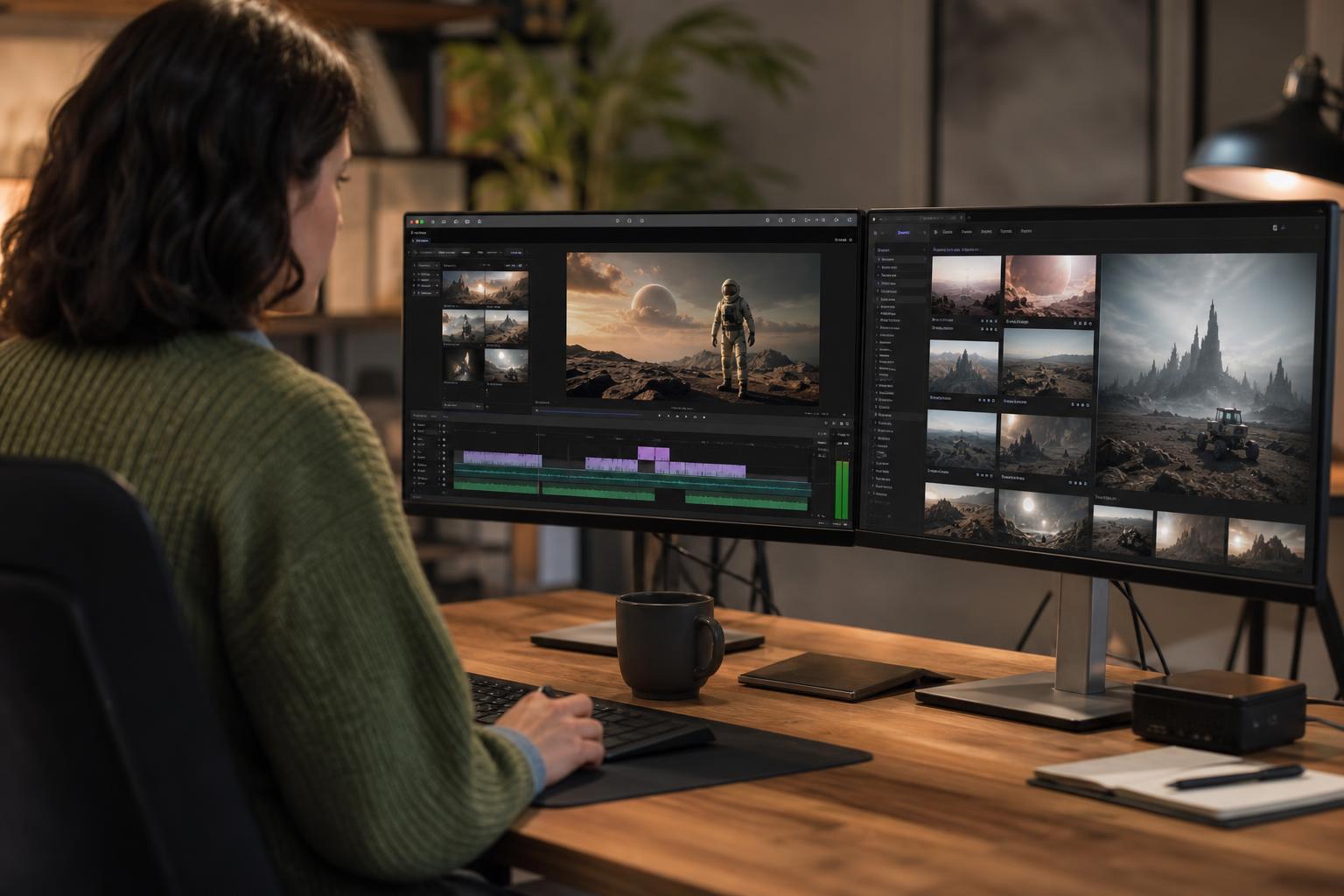
An AI image to video generator takes a single still picture and predicts how it could move, producing a short clip with camera motion, drifting light or a subject that comes to life. For creators, marketers and small businesses, it is one of the fastest ways to turn photos you already own into scroll-stopping video without a shoot, a crew or editing skills. The results, however, depend far more on your source image, your prompt and your motion settings than on luck. This guide explains how the technology works, how to turn an image into video with AI step by step, which prompts and controls give reliable results, and how to avoid common problems, legal pitfalls and wasted credits.
In this article
- Key takeaways
- What an AI image to video generator does and how it works
- How to turn an image into video with AI, step by step
- Choosing a source image that animates well
- Image to video prompts that actually work
- AI video motion control: camera, subject and speed
- Matching clip types to real use cases
- Fixing warping, flicker and other common problems
- Rights, disclosure and responsible use
- Fitting image to video into a wider content workflow
- Conclusion
Key takeaways
- An image-to-video tool uses your picture as the starting frame and predicts the motion, so a strong, clean source image is the biggest quality lever.
- Good image to video prompts describe one camera move, one subject action and the mood, in plain language, rather than a long list of effects.
- AI video motion control (camera direction, motion strength, duration) lets you keep movement subtle, which usually looks more realistic and more professional.
- Faces, hands, text and complex crowds are the most common failure points, so plan shots that avoid them or keep them still.
- Check image rights, platform labelling rules and local regulations before publishing, because they differ between countries and platforms.
What an AI image to video generator does and how it works
Behind the interface, most tools rely on diffusion-based or transformer-based video models trained on very large collections of footage. Your image is used as the first frame, or as a strong visual reference, and the model predicts a sequence of frames that stay consistent with the picture while adding plausible movement. You do not draw keyframes. You describe the motion you want and the model fills in everything in between.
From still frame to moving clip
A typical clip lasts a few seconds, often somewhere between 3 and 10 seconds, at a resolution and frame rate that depend on the tool and your plan. Longer sequences are usually built by joining several clips together. Because the model invents every new frame, the output is a prediction rather than a recording, which is why small details can shift from one frame to the next.
Image-to-video compared with text-to-video
Text-to-video starts from words alone, so the model decides the composition, colours and subject. Image-to-video locks those decisions in. That makes it far better for brand consistency: your product photo, your colour palette or a specific location stays recognisable, and you only direct the movement. If you want a broader view of the tools on the market, our AI video generator comparison covers features and who each type of tool suits.
What it can and cannot do
Image-to-video is strong at adding gentle camera moves, animating water, clouds, smoke, hair and fabric, and creating a sense of depth from a flat photo. It is weaker at the following:
- Legible text, logos and small printed labels, which often wobble or change.
- Accurate hands and fingers during fast action.
- Choreographed movement between several people.
- Physically precise product demonstrations, such as a mechanism operating correctly.
How to turn an image into video with AI, step by step
Whether you use a standalone tool or an all-in-one platform, the process to turn an image into video with AI follows the same pattern. Working in a fixed order keeps your results repeatable and your credit use under control.
Prepare and upload your image
Start with the highest quality version of the picture you have, free of heavy compression, watermarks and stray objects at the edges. Crop it to the aspect ratio you plan to publish in, such as 9:16 for vertical stories or 16:9 for widescreen, so the tool does not have to invent extra background.
Write the prompt and set the controls
Describe the motion in one or two sentences, then choose your camera direction, motion strength and duration if the tool offers them. Keep the first attempt simple. You can always add complexity once you see how the model responds to your image.
Review, refine and export
Watch the clip several times, including once with the sound off and once at half speed if possible, looking for warping, flicker and drifting details. Then follow this loop:
- Pick the single biggest problem, for example a face that melts or a camera move that is too fast.
- Change only one variable, such as the prompt wording or the motion strength.
- Generate again and compare against the previous version.
- Export the best take, then add music, captions and branding in your editor.
For the stages that come before and after generation, see our AI video creation workflow from script to publish.
Choosing a source image that animates well
The same prompt can produce a stunning clip from one photo and a distorted mess from another. Choosing the right image is the cheapest way to improve results, because it costs nothing to compare candidates before you generate.
Composition and resolution
Look for images with a clear subject, a separate foreground and background, and some empty space in the direction the camera will move. A photo of at least 1080 pixels on its short side is a sensible minimum for most social uses, and larger is usually better. Sharp focus matters, because blur tends to be interpreted as a lack of detail and may be replaced with invented texture.
Subjects that animate well
- Landscapes, seascapes and skies, where clouds, waves and light can move naturally.
- Single products on simple backgrounds, where a slow orbit or push-in adds polish.
- Food and drink, where steam, pouring and soft light add appeal.
- Architecture and interiors, where a gentle parallax move reveals depth.
- Illustrations and digital art, where stylised motion hides small inconsistencies.
Subjects that tend to struggle
Crowded scenes, group photos, close-ups of hands, images with lots of small text and low-light photos with heavy noise are the usual troublemakers. You can still use them, but keep the motion very low, or choose a different image for the animated version and keep the original for static posts.
Image to video prompts that actually work
Good image to video prompts are shorter than most people expect. Your image already supplies the subject, colours and style, so the prompt only needs to say what should move and how the camera should behave.
A simple prompt formula
Use this structure: camera move + subject action + environment motion + mood. For example: "Slow push-in on the ceramic mug, steam rising gently, soft morning light, calm and cosy." Each part is specific, and none contradicts another.
Example prompts you can adapt
- Product: "Slow 360-degree orbit around the bottle, soft reflections moving across the glass, clean studio mood."
- Landscape: "Gentle aerial drift forward over the valley, clouds moving slowly, warm late-afternoon light."
- Portrait: "Subtle breeze moving the hair, the subject blinks and smiles slightly, camera completely still."
- Interior: "Smooth sideways glide across the living room, curtains swaying lightly, bright natural daylight."
Phrases that cause trouble
Vague intensity words such as "epic", "crazy" or "extreme" push the model towards chaotic motion. Stacking several camera moves in one clip, such as a zoom, a pan and a tilt together, often produces warping. Asking for exact numbers, like "move 2 metres (about 6.5 feet) to the left", is rarely followed precisely, so describe the feeling of the move instead, for example "slow" or "smooth". If your tool supports negative prompts, use them to exclude things like "text, distortion, extra fingers, flicker".
AI video motion control: camera, subject and speed
AI video motion control refers to the settings and prompt choices that decide how much and what kind of movement appears. Different tools label these features differently, but the underlying ideas are consistent, and understanding them helps you judge any tool.
Camera movement
Common options include push-in or zoom in, pull-out, pan left or right, tilt up or down, orbit and handheld drift. Choose one per clip. A slow push-in is the safest all-round choice because it adds depth and focus without asking the model to reveal large areas of the scene that do not exist in your photo.
Subject and background motion
Many tools offer a motion strength or motion bucket slider, and some let you paint a mask over the parts of the image that should move while the rest stays frozen. Masking is especially useful for keeping a product or a face stable while only the water, smoke or background animates. If there is no mask option, you can describe it in the prompt, for instance "only the clouds and water move, everything else stays still".
Duration, speed and loops
Shorter clips tend to hold together better, because errors accumulate over time. If you need a longer shot, generate several short ones and cut between them. For seamless background loops, choose subtle, repetitive motion such as flowing water, rain or flickering candles, and test the join at the end of the clip before using it.
Matching clip types to real use cases
The best settings depend on where the clip will appear and what it needs to achieve. A product teaser, a travel reel and a brand story each call for different images and different amounts of movement.
Use case comparison
| Use case | Best source image | Recommended motion | Typical clip length |
|---|---|---|---|
| Product showcase | Sharp, single item on a plain background | Slow orbit or push-in, soft reflections | 4 to 6 seconds |
| Social story or reel hook | Bold subject with clear foreground | Quick but smooth push-in, light particles | 3 to 5 seconds |
| Travel or real estate | Wide, well-lit scene with depth | Gentle parallax glide, moving sky or water | 5 to 8 seconds |
| Brand portrait or story | Well-lit face looking at the camera | Still camera, subtle blink and breeze | 3 to 5 seconds |
| Illustration or artwork | Clean, high-resolution digital art | Stylised drift, glowing or floating elements | 4 to 8 seconds |
Aspect ratio and format choices
Generate in the shape you will publish. Vertical 9:16 suits short-form platforms and stories, square 1:1 works in many feeds, and 16:9 suits websites and long-form video. Reframing a finished widescreen clip into vertical often crops the subject awkwardly, so it is better to start from a correctly cropped image. Whatever the platform, keep the key subject away from the outer edges to leave room for interface elements and captions.
Fixing warping, flicker and other common problems
Even with careful preparation, you will sometimes get odd results. Most problems have a predictable cause and a practical fix, so it helps to diagnose before you regenerate.
Faces, hands and text
If a face distorts, lower the motion strength, keep the camera still and ask only for small movements such as a blink or a slight smile. For hands, choose an image where they are partly hidden or at rest. For text and logos, avoid animating the area, or add them back in your editor after generation, which is also more reliable for brand accuracy.
Unwanted or excessive motion
If everything moves when you wanted only one element to, reduce the motion setting, specify "camera static" and name the one thing that should move. If nothing moves enough, make the verb more specific. "Waves rolling towards the shore" works better than "dynamic water".
Saving credits while you iterate
Video generation is usually the most credit-hungry type of AI output, so a method matters. Test your prompt on a shorter or lower-resolution preview where the tool allows it, change one variable per attempt and keep a note of which prompts worked for which type of image. Once you have a reliable recipe for a type of shot, you can reuse it across a whole batch. Our guide to AI credits pricing and what each output really costs explains how to estimate this before you commit.
Rights, disclosure and responsible use
Animating a photo creates a new piece of media, and publishing it brings responsibilities that are easy to overlook, especially for businesses and agencies producing content for clients.
Do you have permission to animate the image?
Only animate images you own, have licensed or have clear permission to adapt. A stock licence may not cover derivative or AI-modified use, so read the terms. If a real person appears in the image, you generally need their consent, particularly if the animation makes them appear to do or say something they did not. Never use the technology to mislead people about real events or individuals.
Labelling AI-generated video
Many major social platforms ask creators to label realistic AI-generated or altered content, and their rules change from time to time. Even where labelling is not mandatory, a short note such as "animated with AI" builds trust with your audience, particularly for realistic scenes.
Rules differ by country
Laws on synthetic media, personality rights, advertising disclosure and copyright vary widely. Some regions, including the European Union, are introducing transparency obligations for AI-generated content, while other countries rely on existing laws about fraud, defamation or privacy. Because this area is changing, check the current rules where you and your audience are located, and seek qualified legal advice for commercial campaigns.
Fitting image to video into a wider content workflow
A clip is only valuable if it reaches the right people. Treating image-to-video as one step in a repeatable system, rather than a one-off experiment, is what turns it into a real marketing advantage.
Repurpose assets you already own
Product photos, blog illustrations, event pictures and brand artwork can all become short videos. A single product shot might become a vertical teaser, a looped website banner and an ad variation. Keeping your tone and visual style consistent across all of them matters, and our guide to making AI content sound human covers the editing mindset that also applies to captions and voiceovers.
Publish and measure
CreatorsForge.io brings AI video creation together with SEO article writing, WordPress auto-publishing, social media automation and analytics inside one credit-based platform, so animated clips can go from idea to scheduled post without switching tools. You can start with a free trial to test whether the workflow suits you. Whatever tool you use, track which clips earn watch time, clicks and shares, then repeat the prompts and motion styles that performed best. If you plan to schedule clips across channels, our brand-safe social media automation workflow shows how to keep a human review step in place.
Conclusion
An AI image to video generator lets you animate photos with AI quickly, but the quality of the result comes from preparation rather than chance. Choose a clean, well-composed source image, write short prompts that describe one camera move and one subject action, and use motion controls to keep movement subtle. Expect to iterate, change one variable at a time and avoid difficult subjects such as text and hands. Respect image rights and labelling rules in your region, then fold the clips into a publishing and measurement routine so each one earns its place.
Frequently asked questions
- What is an AI image to video generator?
- It is a tool that takes a still image and uses an AI model to predict a short moving clip from it. You usually add a text prompt describing the camera and subject movement. The result is typically a few seconds long and can be edited further in a video editor.
- How do I turn an image into video with AI?
- Upload a sharp, correctly cropped image, write a short prompt describing one camera move and one subject action, then choose settings such as duration and motion strength. Generate the clip, review it for warping or flicker, and refine one variable at a time. Export the best version and add music, captions or branding.
- What makes a good image to video prompt?
- A good prompt is short and specific: camera move, subject action, environment motion and mood. For example, 'slow push-in on the mug, steam rising, soft morning light'. Avoid stacking several camera moves or using vague words like 'epic'.
- Why do faces and hands look distorted in AI-animated photos?
- The model invents new frames, and faces and hands are complex, so small errors become visible as motion increases. Lower the motion strength, keep the camera still and request only subtle movements such as a blink. Choosing images where the hands are at rest or hidden also helps.
- How long can an image to video clip be?
- Most tools generate clips of roughly 3 to 10 seconds, depending on the model and plan. Longer videos are normally made by joining several short clips. Shorter clips usually look more stable because errors build up over time.
- Can I use AI-animated videos for commercial purposes?
- Often yes, but it depends on the tool's terms, your rights to the original image and local law. Check the licence for any stock photos, get consent for identifiable people and review the platform's rules on AI labelling. For high-stakes campaigns, take legal advice in your country.
- Should I label AI-generated videos?
- Many major social platforms ask you to label realistic AI-generated or altered content, and some regions are introducing legal transparency requirements. Even when it is not required, a short disclosure helps build audience trust. Check the current rules for each platform and country you publish in.
- Is image-to-video better than text-to-video?
- Neither is better in every case. Image-to-video gives you more control over composition, colours and brand consistency because your picture sets the look. Text-to-video is better when you have no starting image and want the model to invent the scene.
Ready to build with AI?
CreatorsForge turns one idea into finished content, published and measured — automatically.
Start free