AI Video
AI Video Generator From Text Prompt: Step-by-Step Guide (2026)
CreatorsForge Team · October 20, 2026 · 10 min read
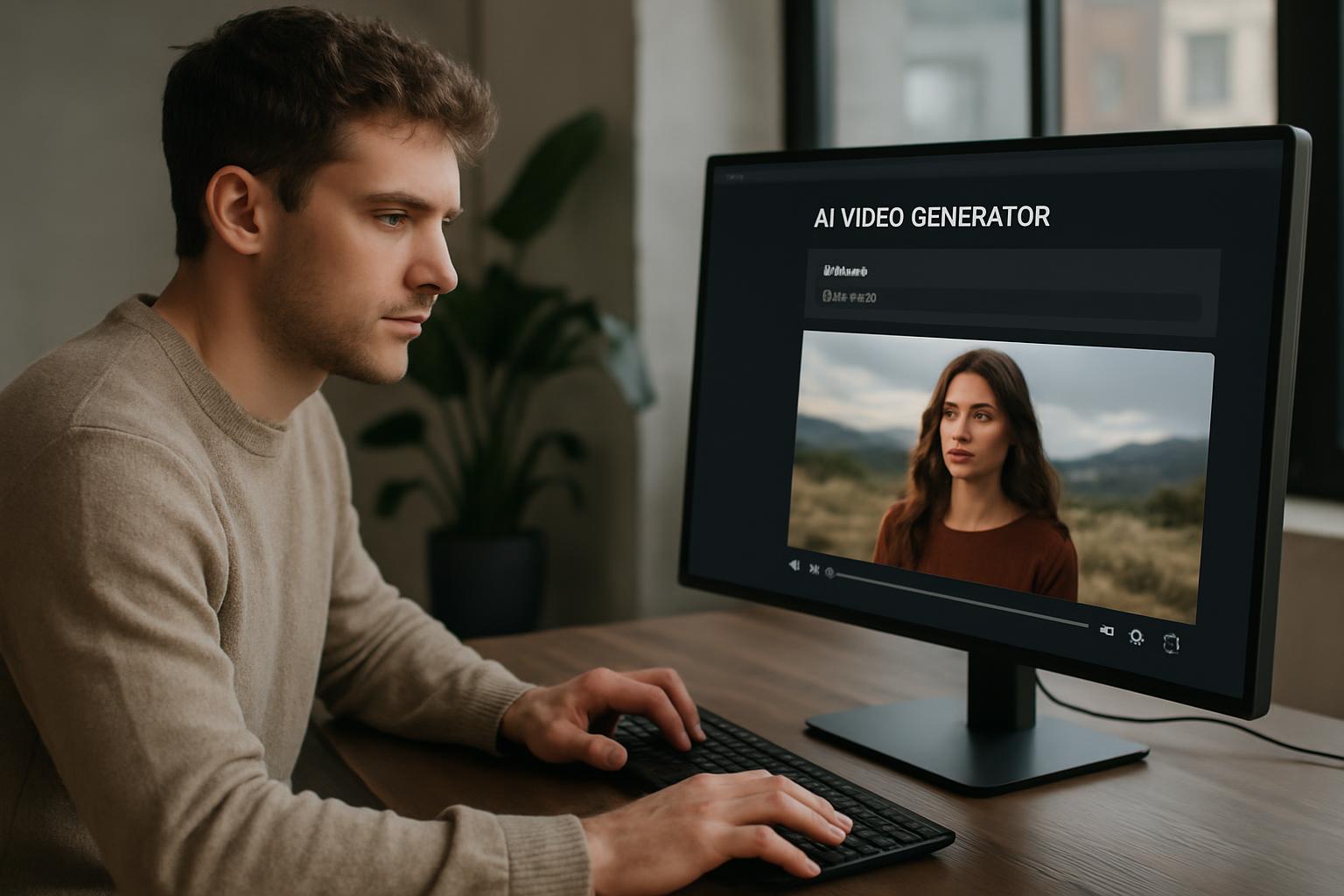
An AI video generator from text prompt turns a written description into moving footage, and in 2026 it is one of the fastest ways for creators, marketers and small businesses to produce video without a camera crew. But typing a vague request such as "a cool ad for my coffee shop" rarely gives you something usable. The gap between a flickering, off-brand clip and a polished one comes down to process: a clear brief, a structured prompt, consistent shots, a well-directed voiceover and music, and a realistic plan for what can go wrong. This guide walks through each step, with prompt examples you can adapt, fixes for common failures, and notes on where rules and tools differ around the world.
In this article
- Key takeaways
- How an AI video generator from text prompt actually works
- How to make AI videos from text: the step-by-step process
- Prompt structure that works: a six-part formula
- Shot consistency: keeping characters, style and scenes stable
- Voiceover and music for text-to-video AI
- Common failures and how to fix them
- Formats, rights and publishing at scale
- Conclusion
Key takeaways
- Write a short script and shot list first; generate clips one shot at a time rather than asking for a whole film in one prompt.
- Use a repeatable prompt structure: subject, action, setting, camera, lighting and style, plus a duration and aspect ratio.
- Keep shots consistent with a fixed style line, reference images, and the same wording for recurring characters or products.
- Record or generate voiceover and music separately, then mix them in an editor so audio stays under your control.
- Expect failures such as morphing hands, garbled text and odd physics, and plan fixes like shorter clips, simpler actions and overlays added in editing.
- Rules on AI disclosure, voice consent and music licensing vary by country and platform, so check them before you publish.
How an AI video generator from text prompt actually works
Understanding the basics helps you write better prompts, because you learn what the model is good at predicting and where it guesses.
Text-to-video models in plain language
Most modern text-to-video AI systems are trained on large collections of video and matching descriptions. When you submit a prompt, the model converts your words into a numerical representation and then builds a sequence of frames that statistically fits that description. It is not filming a real scene. It is predicting what plausible footage would look like, frame by frame, while trying to keep objects and motion coherent over time.
This explains why specific, visual language works better than abstract language. "A confident brand" means little to a model; "a woman in a linen apron smiling as she hands over a ceramic cup, soft morning window light" gives it concrete things to render.
What current tools do well and badly
Today's tools usually handle short clips (commonly a few seconds up to around ten or more, depending on the tool and plan), atmospheric b-roll, product-style shots, landscapes, abstract visuals and stylised animation. They tend to struggle with long continuous scenes, precise hand movements, readable text, complex multi-person interaction and exact physical cause and effect. Treat each generation as a single shot, not a full scene.
Text-to-video or image-to-video?
Text-to-video builds everything from words. Image-to-video starts from a still image you supply or generate, then animates it. If you need your product, mascot or a specific look to stay accurate, image-to-video gives you more control, because the first frame is already approved. Many creators combine both: text-to-video for exploratory b-roll and image-to-video for hero shots.
How to make AI videos from text: the step-by-step process
A repeatable workflow saves credits and frustration. Here is the process that works across most tools.
Steps 1 and 2: goal, script and shot list
- Define the goal and audience. Decide the one action you want viewers to take: follow, click, buy, learn. Note the platform, because that determines length and aspect ratio.
- Write the script and shot list. Keep a 30-second video to roughly 5 to 8 shots. For each shot, write one line of narration and one line describing what is on screen.
Writing the narration first gives you timing. As a rule of thumb, most voiceovers run at about 130 to 160 words per minute, so a 30-second video holds roughly 65 to 80 words.
Steps 3 and 4: generate and review clips
- Generate each shot separately. Use your prompt structure (covered below), set the aspect ratio and duration, and generate two or three variations per shot.
- Review critically. Check hands, faces, text, product shape and motion. Discard clips with obvious errors instead of trying to rescue them in editing.
Steps 5 and 6: add audio, edit and export
- Add voiceover, music and sound effects. Build the audio track on its own, then cut clips to the narration.
- Edit, caption and export. Trim clips to the best two to four seconds, add captions and any brand text as overlays, then export at the resolution your platform supports.
If you publish short-form content regularly, our guide to an AI video generator for TikTok and Reels goes deeper on formats and pacing.
Prompt structure that works: a six-part formula
Good prompts are specific, ordered and focused on what the camera would see. A consistent structure also makes it easy to tweak one variable at a time.
The six building blocks
- Subject: who or what is in the shot, with two or three defining details.
- Action: one clear movement, such as pouring, turning, walking or opening.
- Setting: location, time of day and background elements.
- Camera: shot size and movement, such as close-up, wide shot, slow push-in, handheld or overhead.
- Lighting and mood: soft window light, golden hour, neon night, overcast daylight.
- Style and format: photorealistic, 3D animation, film grain, plus aspect ratio and duration.
AI video prompt examples you can adapt
| Use case | Example prompt |
|---|---|
| Product b-roll | Close-up of a matte black water bottle on a wet stone ledge, condensation beading, slow push-in, soft overcast light, shallow depth of field, photorealistic, vertical 9:16, 5 seconds |
| Local business | A baker in a flour-dusted apron slides a tray of croissants from an oven, warm kitchen light, medium shot, gentle handheld camera, cinematic, 16:9, 6 seconds |
| Explainer visual | Clean 3D animation of coins flowing into a glass jar on a pastel background, locked-off camera, soft studio light, minimalist style, 1:1, 5 seconds |
| Travel style | Aerial view drifting over terraced hills at sunrise, mist in the valleys, slow forward movement, natural colours, 16:9, 8 seconds |
Prompt length, negatives and iteration
Aim for roughly 25 to 60 words. Too short leaves the model guessing; too long can cause it to ignore details. If your tool supports negative prompts or exclusions, use them sparingly for recurring issues, such as "no text, no watermark, no extra fingers". Change one element at a time between attempts so you learn what actually moved the result. Keep a simple document of prompts that worked; that library becomes a real asset.
Shot consistency: keeping characters, style and scenes stable
Consistency is where most AI videos fall apart. Each generation is independent, so a character may change face, clothing or even age between clips. You cannot eliminate this entirely, but you can reduce it a lot.
Create a style and character anchor
Write a fixed "style line" and paste it at the end of every prompt, for example: "warm natural light, muted earthy palette, 35mm film look, shallow depth of field". For recurring characters, write a fixed description of 15 to 25 words covering age range, hair, clothing and one distinctive item, and reuse it word for word. Small wording changes can lead to a different person.
Use reference images and fixed settings
If your tool supports reference images, character references or seed values, use them. Generate a clean image of your character or product first, approve it, then use it as the starting frame for image-to-video. Keep aspect ratio, resolution and model version the same across a project, because switching models mid-project almost guarantees a visual mismatch.
Plan continuity in the edit
Design your shot list so consistency matters less. Cut between wide, close-up and detail shots rather than showing the same face repeatedly. Use cutaways to hands, objects and environments. Match colour in the edit with a single colour grade across all clips, which hides many small differences. Faceless formats work especially well here; see how to make faceless YouTube videos with AI for structures that avoid the character problem entirely.
Voiceover and music for text-to-video AI
Audio often decides whether viewers perceive a video as professional. Silent or badly mixed AI footage feels cheap even when the visuals are strong.
Write the script for the ear
Use short sentences, contractions and one idea per line. Read the script aloud before generating a voice. If you stumble, the synthetic voice will too. Put numbers and unusual names in a form that is easy to pronounce, and add phonetic spellings where your tool allows them. Open with the hook in the first three seconds for social formats.
Choose and direct the voice
Pick a voice that fits the audience, not just one that sounds pleasant. Test the same paragraph with two or three voices. Adjust pacing, add pauses with punctuation, and avoid long run-on sentences. If you want your own voice, only clone it with your own consent, and never clone another person's voice without clear permission; laws on voice and likeness differ by country and are changing quickly.
Music, mixing and licensing
Choose music that matches the pace of your cuts. Instrumental tracks work best under narration. As a practical mixing guide, keep music clearly below the voice, commonly 15 to 25 decibels lower while someone is speaking, then raise it slightly during pauses. Add subtle sound effects such as whooshes or ambient room tone to make AI clips feel grounded. Always confirm the licence of any music or sound effect, including AI-generated music, for commercial use and for the platforms you publish on, as terms and platform rules vary.
Common failures and how to fix them
Every creator hits the same problems. Knowing the pattern lets you fix them quickly instead of burning credits on random retries.
Visual artifacts and morphing
Hands with the wrong number of fingers, faces that shift and objects that melt are typical. Fixes: shorten the clip, simplify the action, avoid close-ups of hands performing detailed tasks, and regenerate rather than hoping for improvement. Wider shots and silhouettes hide errors better than extreme close-ups.
Motion, physics and camera problems
Liquids, cloth, crowds and fast movement often behave oddly. Ask for slow, single-direction motion and a specific camera instruction. If the camera whips around unpredictably, state "locked-off camera" or "slow push-in" explicitly.
Text, logos and brand accuracy
Generated text is frequently garbled, and logos are rarely exact. Do not ask the model to render words or your logo. Instead, generate a clean shot with empty space and add text, logos and product labels as overlays in your editor.
| Problem | Likely cause | Quick fix |
|---|---|---|
| Character changes between shots | No fixed description or reference | Reuse exact wording; start from approved image |
| Garbled on-screen text | Model predicts shapes, not spelling | Add text as editor overlay |
| Jerky or strange motion | Too many actions in one prompt | One action, slower movement, shorter clip |
| Flat, generic look | No lighting or camera direction | Add lighting, lens and mood details |
| Voice out of sync | Clips cut without reference to narration | Cut clips to the voiceover timeline |
Formats, rights and publishing at scale
Once your clips look good, the final stage is making them fit the platform and staying on the right side of rules.
Aspect ratios and platform length
Use 9:16 for TikTok, Reels and Shorts, 16:9 for YouTube and websites, and 1:1 or 4:5 for many feed placements. Generate in the target ratio from the start; cropping a 16:9 clip into vertical often cuts off your subject. For advertising use, check each platform's current length and safe-zone guidance, since they change. Our guide on how to create AI product ads that convert covers ad-specific structure.
Disclosure, consent and copyright around the world
Regulations differ between countries and regions. Some jurisdictions, including the European Union, are introducing transparency requirements for AI-generated or manipulated media, and many platforms ask you to label realistic synthetic content. Copyright status of AI-generated output also varies by country, and rules on using real people's faces or voices differ widely. Avoid imitating real individuals, keep records of your prompts and licences, and check local advice for commercial campaigns.
Building a repeatable workflow
Producing one video is easy; producing a steady stream is the hard part. An all-in-one platform such as CreatorsForge brings AI video creation, social media automation and WordPress auto-publishing into one workflow, so scripts, clips and posts do not have to move between separate tools. If you are comparing options, see our breakdown of the best AI content creation platform criteria to decide what matters for your team.
Conclusion
Using an AI video generator from text prompt is less about finding a magic phrase and more about following a reliable process. Start with a script and shot list, write structured prompts, generate one shot at a time, and keep style and character descriptions fixed. Build voiceover and music separately, add text and logos in the edit, and treat failures as a signal to simplify. Finally, check disclosure, consent and licensing rules for your region and platform before publishing.
Frequently asked questions
- What is an AI video generator from text prompt?
- It is a tool that creates video clips from a written description. You describe the subject, action, setting and style, and the model generates short footage that matches. Most tools produce clips of a few seconds, which you then edit together.
- How do I write a good text-to-video prompt?
- Include a subject, one clear action, a setting, camera movement, lighting and a style, plus the aspect ratio and duration. Keep it to roughly 25 to 60 words and change one element at a time when refining. Specific visual language works better than abstract words.
- How long can AI-generated videos be?
- Most tools generate individual clips of a few seconds up to around ten or more, depending on the model and your plan. Longer videos are made by generating several shots and editing them together with audio. Limits change often, so check your tool's current options.
- How do I keep the same character across different AI video clips?
- Reuse an identical character description in every prompt, add a fixed style line and, where available, use reference images or image-to-video from an approved still. Cutting between wide shots, close-ups and cutaways also reduces how noticeable small differences are.
- Can AI video tools add voiceover and music automatically?
- Some platforms include text-to-speech and music options, while others need you to add audio in an editor. Either way, write the narration first, cut your clips to it and keep music well below the voice level. Always check licence terms for commercial use.
- Why does text look wrong in AI-generated videos?
- Models predict visual patterns rather than spelling, so letters often come out distorted. The reliable fix is to generate footage without text and add captions, titles and logos as overlays in your video editor.
- Do I need to label AI-generated videos?
- Requirements vary by country and platform. Some regions are introducing transparency rules for synthetic media, and many social platforms ask you to label realistic AI content. Check the rules where you publish and where your audience lives.
- Is text-to-video or image-to-video better?
- Neither is always better. Text-to-video is faster for exploring ideas and b-roll, while image-to-video gives more control over a specific product, character or look because the first frame is already approved. Many creators use both in one project.
Ready to build with AI?
CreatorsForge turns one idea into finished content, published and measured — automatically.
Start free